Ribbon mascotRibbon
DemoPricingShortcutsGuidesFAQsChangelog
Download
Ribbon mascotRibbon

A scrolling window manager for Mac. Windows sit on one strip: scroll instead of shrinking.

Support: [email protected]

  • Listed on MacPip
  • Featured on TryMacApps
  • Ribbon is featured on MacBase
  • Featured on DanielLaunches
  • Featured on CodeHype
  • Ribbon on DodoLaunch
  • Featured on PickMacApps
PricingDownloadShortcutsGuidesChangelogLicensePrivacyTermsRefunds

Compare

Ribbon vs yabaiRibbon vs AeroSpaceRibbon vs AmethystRibbon vs ChainYourMacRibbon vs OmniWM

Guides

4 way split screenAeroSpace alternativesAeroSpace on MacAeroSpace vs yabaiAmethyst alternativesBest Mac window managersBest scrolling window managersBetterSnapTool alternativesHow to use AeroSpaceHyprland for MacKeyboard shortcutsLoop alternativesMac tiling window managersMac window managersMacBook window managerMagnet alternativesMoom alternativesMultiple displaysNiri for MacOrganize windowsPaperWM for MacPrivacyRectangle alternativesScrolling window managersSplit screen on MacSplit screen optionsSplit screen shortcutStage Manager alternativesTrackpad gesturesTroubleshootingWhat a window manager isyabai with SIP onAll guides

© 2026 Ribbon · macOS 14+ · Apple siliconBuilt on top of Paneru

Guides

Split Screen Mac: Which Option to Use

Split screen Mac means two or more windows sharing one display. Tiling, Split View, snapping apps, or a scrolling strip: which option fits.

Ask AI about this guide

OpenAIClaudeGrokPerplexityGoogle Gemini

Split screen Mac means sharing one display between windows. You can do that with desktop tiling, full-screen Split View, a snapping app, or a scrolling strip. This page is which option fits. The clicks are in how to split screen on Mac.

Desktop tiling

macOS 15 Sequoia added window tiling, and it is still there on Tahoe 26 and Golden Gate 27. The windows stay on your normal desktop. The Dock and menu bar stay.

A half is the left, right, top or bottom of the screen. A corner is a quarter. Drag a window to the menu bar and it fills the desktop. Hold Option while you drag if you want the highlight before you reach the edge.

The green button and Window → Move & Resize show the same layouts. The keys, including Fn⌃⇧←, are on split screen Mac shortcut. Do not follow a click-by-click list here.

Tiling does not watch for new windows. Open Mail and it lands on top of the split. You place each window yourself.

If the drag fires when you do not want it, turn it off in System Settings → Desktop & Dock → Windows. The keyboard shortcuts stay.
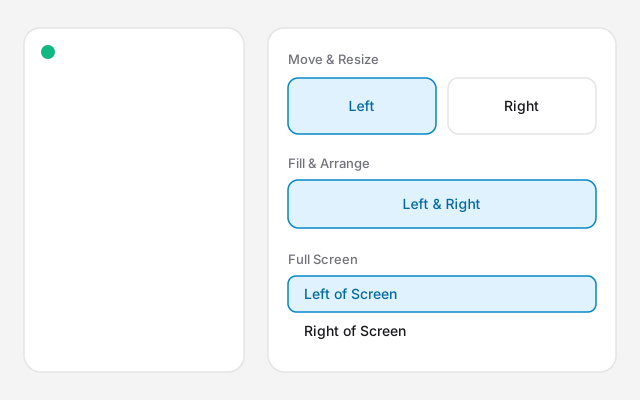
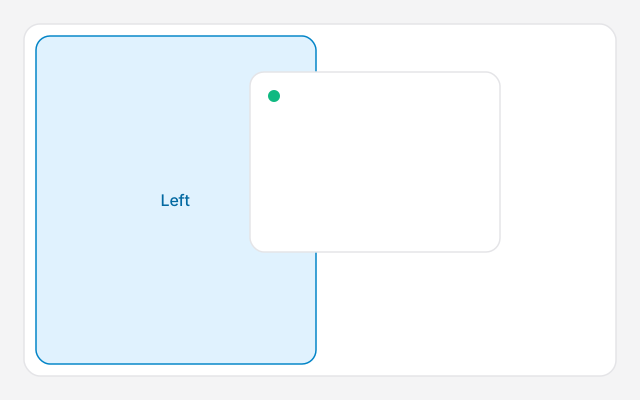
Diagram of a window and the green button menu. The menu shows Move & Resize with Left and Right, Fill & Arrange with Left & Right, and Full Screen with Left of Screen and Right of Screen.
Diagram, not a screenshot. The green button groups layouts under Move & Resize, Fill & Arrange, and Full Screen.
Diagram of a window dragged toward the left edge. The left half is highlighted and labelled Left.
Diagram of the drag highlight. Apple names that half Left. Let go when the highlight appears.

Split View

Split View is a different feature. It puts exactly two apps in their own full-screen Space. The menu bar and Dock hide until you point at them.

On current macOS, hover the green button, choose Full Screen, then Left of Screen or Right of Screen, and click the second app. On Sonoma the menu says Tile Window to Left of Screen or Tile Window to Right of Screen.

Use Split View when those two apps are the whole job. It does not do three apps, and it does not do quarters.
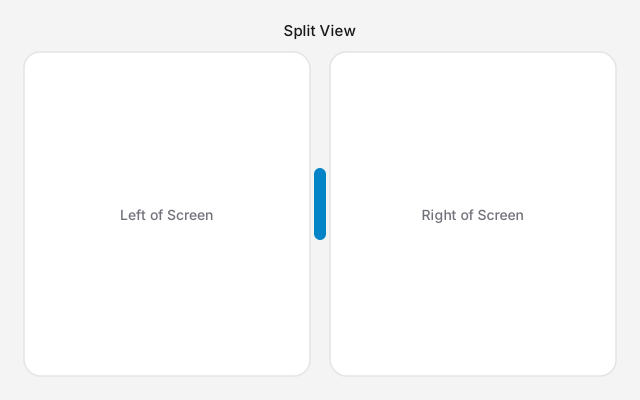
Diagram of Split View: two windows side by side, labelled Left of Screen and Right of Screen, with a divider between them.
Diagram of Split View. The two apps share one full-screen Space, and the divider changes the ratio.

When a half is too narrow

Four quarters on a laptop are often too small to read. That layout is 4 way split screen on Mac.

A scrolling strip keeps each window at the width you set. A new window opens beside the one you are using. You scroll sideways to the rest.

Ribbon is that strip, on Apple silicon and macOS 14 or later. ⌘⌃2 lays two windows side by side when you want a normal split. The price is $17 for one Mac, $39 for three and $59 for five. Keys are in the shortcuts guide.
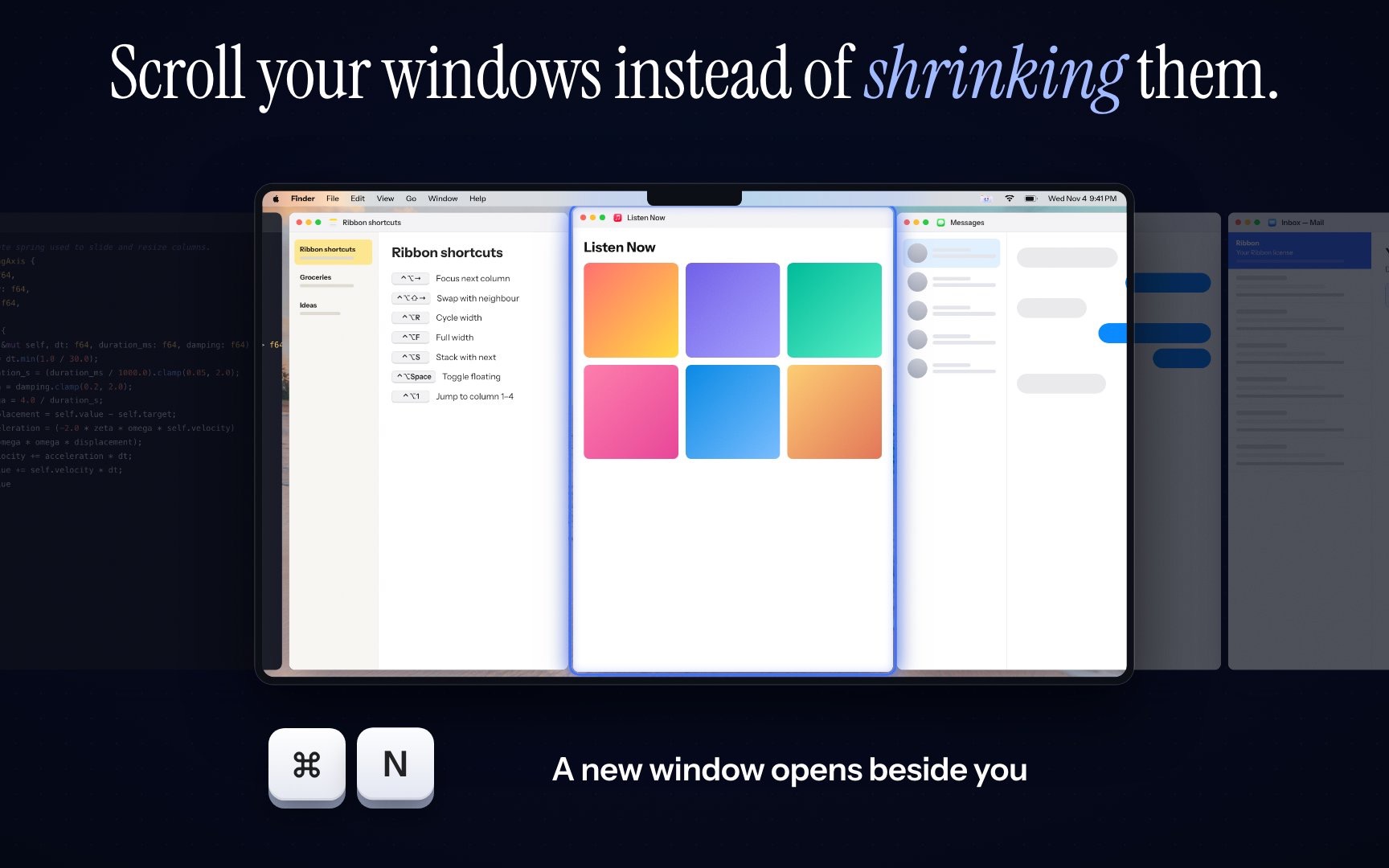
Ribbon windows in columns on a strip. Notes, Music and Messages are on screen, and Mail is cut off at the right edge.

Which option

  • Two windows, and you still want the Dock: desktop tiling, on macOS 15 or later.
  • Two apps and nothing else: Split View.
  • You are on macOS 14, or you want thirds: Rectangle.
  • Many windows, and they must stay readable: a scrolling strip.

Related guides

  • How to Split Screen on a Mac (macOS 15 and Later)
  • Split Screen Mac Shortcut Keys
  • 4 Way Split Screen Mac: Quarters

FAQs

Short answers for this guide. Setup and license links if you need the next step.

Ask AI about this guide

OpenAIClaudeGrokPerplexityGoogle Gemini

Can’t find what you’re looking for? See the Mac Setup page or write from the app’s About screen.

No. Split View is the full-screen pair, in its own Space. Window tiling keeps halves and quarters on your normal desktop. People use both names for either.

Is split screen the same as Split View?
No. Split View is the full-screen pair, in its own Space. Window tiling keeps halves and quarters on your normal desktop. People use both names for either.
Which split should I use for two windows?
Window tiling on macOS 15 or later, if you still want the Dock. Split View if those two apps should be the whole screen.
Does macOS split the screen on Sonoma?
Sonoma has Split View, not desktop window tiling. The Fn-Control-arrow shortcuts start in macOS 15 Sequoia.
What if halves are too narrow?
A quarter or a half on a laptop often is. A scrolling strip keeps each window at a width you choose and parks the rest beside the screen.

Can’t find what you’re looking for? See the Mac Setup page.

All guides