# How to Split Screen on a Mac (macOS 15 and Later)
How to split screen on Mac: Fn-Control-Shift-Left Arrow on macOS 15 or later, drag to an edge, or use Split View on older systems.
On macOS 15 or later, click the window that should be on the left and press Fn-Control-Shift-Left Arrow. It takes the left half. The window behind it takes the right. You can also drag a window to the left or right edge, or hover the green button. On macOS 14 and earlier, hover the green button and choose Tile Window to Left of Screen.
Which option fits, tiling or Split View or a strip, is [split screen Mac](/guides/mac-split-screen). This page is only the steps.
## The steps
1. Click the window that should be on the left.
2. Press Fn-Control-Shift-Left Arrow.
3. Press Fn-Control-R if you want that window back to its previous size.
## Drag, or Split View
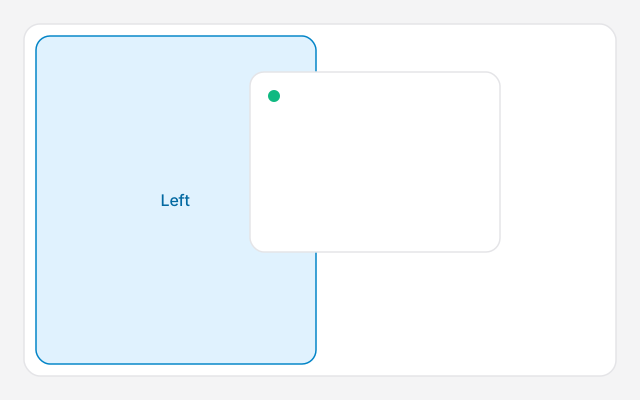
Drag a window by its title bar to the left or right edge and let go when the outline appears. Drag to a corner for a quarter. Drag to the top edge to fill the desktop. This stays on your normal desktop, with the Dock visible. Turn the drag off in System Settings → Desktop & Dock → Windows if it fires too often.
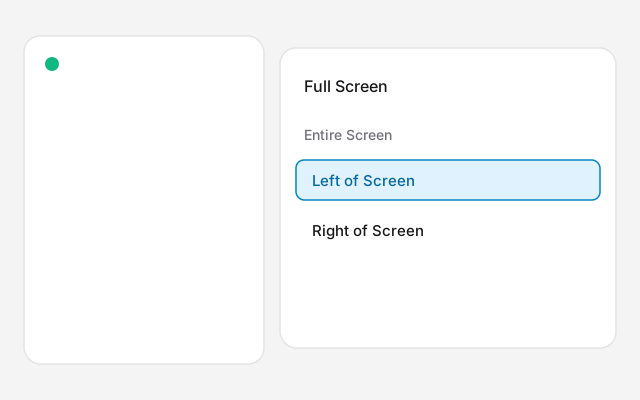
Split View is the full-screen version, and it works on older macOS too. Hover the green button, choose Full Screen, then Left of Screen or Right of Screen, and click the second app. On Sonoma the menu says Tile Window to Left of Screen. Both apps move to their own Space. The menu bar and Dock hide until you point at them.
Diagram of Full Screen, then Left of Screen. On Sonoma the same step is Tile Window to Left of Screen.Diagram of dragging to the left edge. The highlight is the Left half.
## The shortcut, and three or four windows
The Fn key is the Globe key on a MacBook. Fn-Control-Left Arrow moves only the front window. Add Shift to pair two windows. The whole list, and what to do on macOS 14, is [split screen Mac shortcut](/guides/split-screen-mac-shortcut).
macOS can show four windows as quarters, and three as a half plus two quarters. It has no equal thirds, and Quarters has no keyboard shortcut. That is [4 way split screen on Mac](/guides/4-way-split-screen-mac).
## If it fails
- **Nothing happens.** You may be on macOS 14 or earlier. Check Apple menu → About This Mac.
- **The window jumps back.** Quit Rectangle, Magnet, or any window manager, and try again.
- **The window will not shrink.** The app has a minimum size. macOS gets as close as it can.
- **The wrong window is the partner.** Click the one you want second, then the one you want first, then press the shortcut.
## Ribbon
If you split the screen all day and every new window still lands on top, [Ribbon](https://meetribbon.app) keeps windows in columns on a strip. A new window opens beside the focused one and nothing else resizes. Command-Control-2 is two columns. Command-Control-3 is three. The price is $17 for one Mac, $39 for three and $59 for five. It needs Apple silicon and macOS 14 or later. Try the keys in the [shortcuts lab](/shortcuts) first.
## FAQs
### What is the shortcut to split screen on a Mac?
Fn-Control-Shift-Left Arrow on macOS 15 or later. The active window goes left and the next window goes right. The full list is in the [shortcut guide](/guides/split-screen-mac-shortcut).
### How do I split screen on a Mac without full screen?
Use window tiling on macOS 15 or later: drag a window to the left or right edge, or use Fn-Control-Left Arrow. It stays on your normal desktop.
### Can a Mac split the screen into three?
Not equally on its own. macOS can show three windows with Left & Quarters, and four as quarters. See [4 way split screen on Mac](/guides/4-way-split-screen-mac).
### Why doesn't Fn-Control-arrow work?
You're probably on macOS 14 or earlier, or another app owns the shortcut. Check About This Mac, and quit other window managers.
### How do I undo a split?
Press Fn-Control-R to return the window to its previous size, or exit Split View from the green button.